

Extensions & translation
Turbo Browser supports the Chrome and Edge extension ecosystem with access to both the Chrome Web Store and Microsoft Edge Add-ons. You can also install .crx packages in one click from Crx搜搜 and other trusted sources. Manifest V3 is supported; Manifest V2 extensions from the Edge Add-ons store remain installable (e.g. Dark Reader). Turbo accounts can sync extensions from the Edge store and Crx搜搜. Add AdGuard and Immersive Translate below.
Entry 1: Browser menu
Open Menu → Extensions to visit the Chrome Web Store or Microsoft Edge Add-ons:
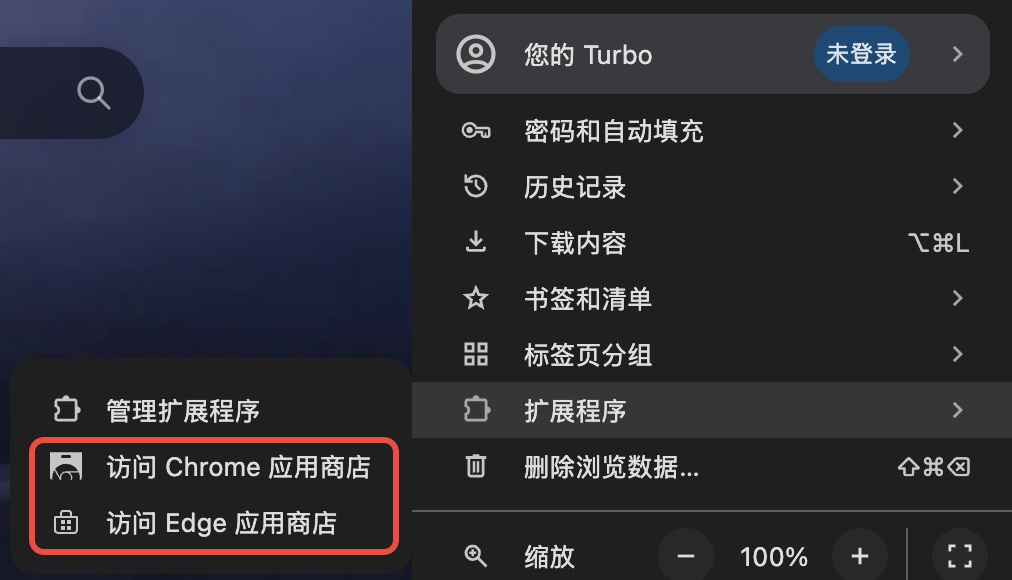
Menu → Extensions → Chrome Web Store / Edge Add-ons
Right-click the toolbar puzzle button to open the extensions page (avoids an empty menu).
Entry 2: Extensions page
Go to chrome://extensions, or choose Manage extensions from the menu. Store links are at the bottom of the page; the sidebar also links to Crx搜搜:
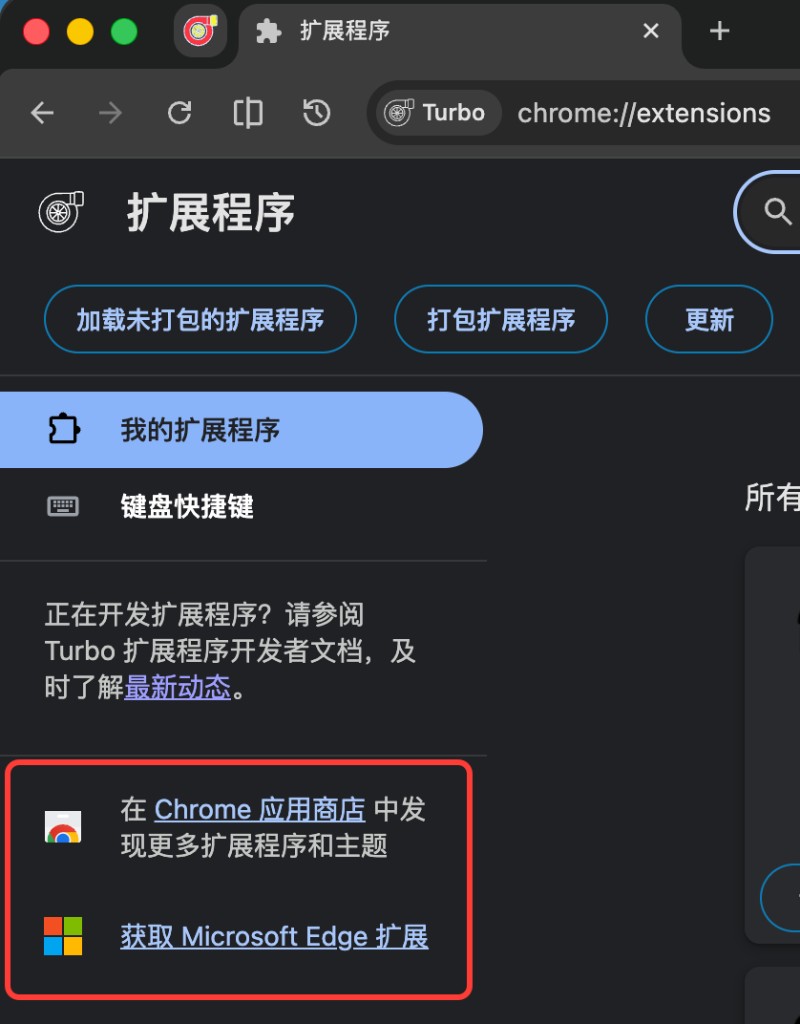
Chrome Web Store and Edge Add-ons links at the bottom of chrome://extensions
Entry 3: Crx搜搜
From the chrome://extensions sidebar, open Crx搜搜, or visit Crx搜搜. Turbo trusts these sources for one-click .crx download and install without extra referrer restrictions.
TIP
Only install extensions from trusted sites. Third-party extension content and behavior are the publisher’s responsibility.
Disable from the toolbar
Right-click an extension icon on the toolbar to disable it (no need to open the extensions page). To turn it back on, open the toolbar puzzle menu, hover Disabled extensions, and click the item.
Pin on install
Pin on install at the top of chrome://extensions (on by default) pins newly installed extensions to the toolbar; you can still drag to reorder them.
Allow replacing the new tab page
No bundled NTP extension; install one from the store if you want. If an extension declares a new-tab override, its details page shows Allow replacing the new tab page (on by default). Turn it off to keep the extension without replacing the Chromium NTP. You can also set a custom new tab URL in Settings → On startup.
Themes
- Click Appearance on the title bar for one-click look and color changes.
- The title bar Themes entry can open the Edge theme store when configured.
- You can also write a theme extension (colors and background images) and load a folder or pack a
.crx. See Create a custom theme extension.
Installing .crx packages
Download a .crx from the site, Crx搜搜, or another trusted source, then drag it into the browser window or open the file and follow the prompt.
Recommended extensions
AdGuard
The site provides an AdGuard extension package; install it when the browser prompts you.
Web translation
Built-in translate: Translate the whole page from the page context menu or the right side of the address bar. Settings → Translate can switch Microsoft Edge / Google (refresh the page before translating again). Show translation prompt is off by default and no longer pops automatically; you can still translate from the address-bar icon.
For bilingual reading, selection translation, and video subtitles, install Immersive Translate. See Features → Web translation.