

Built-in productivity
Turbo Browser builds screenshots, split view, and appearance switching into the toolbar and shortcuts — no extensions required for everyday efficiency. Tabs and the bookmark bar have their own guides.
Screenshots & page export
The toolbar Screenshot button is the main entry:
- Left-click — full-screen capture
- Right-click — save the current page as an image (full page supported) or PDF
Region capture — Ctrl + Shift + X (Windows) / Cmd + Shift + X (macOS) to select any area on screen
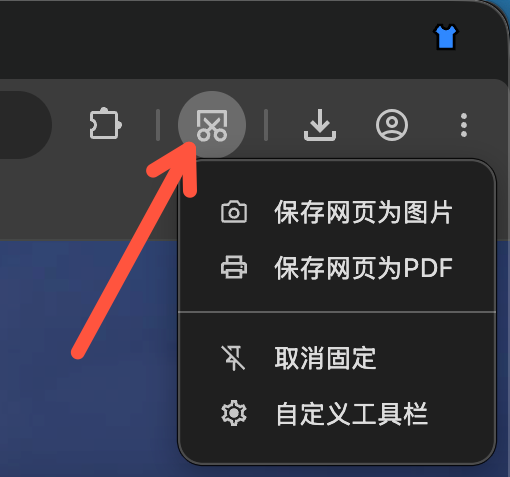
Toolbar screenshot button: left-click full screen, right-click web page
On macOS you may need to grant Screen Recording permission the first time. See Screenshots for full details.
Split view
The toolbar Split control divides the window into side-by-side or top-and-bottom panes so you can compare pages, copy content, or read two sites at once. When already split, you can switch layouts; create or switch from the toolbar button and the tab context menu, and the last layout is remembered. Dragging a tab or link to the left or right of the content area shows the split drop zone sooner. When picking a tab for a split pane, the list shows the small-account accent on the favicon so you can tell identities apart. The toolbar split menu can check Open links in right/bottom pane (off by default): when on, only left/top links open in the right/bottom pane, including SPA links (navigates by href before JS preventDefault); reverse the view quickly if you need the opposite.
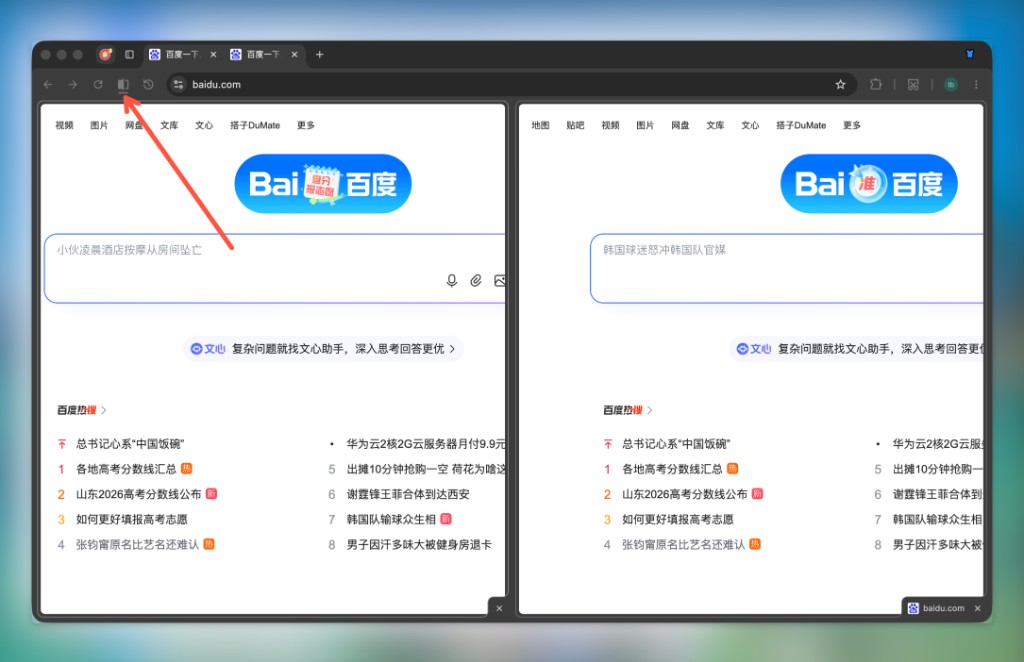
Split view: click the toolbar split button; each pane browses and closes independently; switch between side-by-side and top-and-bottom
Tabs
Tabs support double-click / right-click close, restore, paste and open, mute, plus vertical tabs and small account tabs. Most toggles are under Settings → Tabs and bookmarks.
Full guide: Tabs.
Bookmark bar
The bookmark bar supports auto-hide, icons only, multi-column menus, open in a new tab, replace with current page, and more. Most toggles are under Settings → Tabs and bookmarks.
Full guide: Bookmark bar.
One-click themes
Click Appearance on the title bar to switch browser colors without opening Settings. Right-click to pin/unpin the button; it also appears in Customize Toolbar. The title bar Themes entry can open the Edge theme store for more options.
Immersive mode
Auto-hide the tab strip and toolbar for more content space; move the pointer to the top of the window to reveal chrome. Toggle in Settings, the app menu, the macOS View menu, or with Ctrl/Cmd+F11. Keep window on top is always available in immersive mode; outside immersive mode you can also show it via Customize toolbar.
Full guide: Immersive mode.
See also
- Tabs — close, restore, paste and open, mute, and more
- Bookmark bar — auto-hide, icons only, multi-column menus, and more
- Vertical tabs — side tab layout and how to switch
- Small account tabs — persistent identities inside a normal window
- Immersive mode — auto-hide tab strip and toolbar
- Screenshots — full-screen, web page, and region capture
- Shortcuts → Screenshots
- Extensions → Themes
- Create a custom theme extension
- Features — full capability list